
WhatsApp Appointment Reminders: Send Them Automatically From Your Own Number
To send WhatsApp appointment reminders automatically, link your WhatsApp number to a reminder tool like WA Reminders by scanning a QR code, then tell it when each appointment is. It sends the reminder from your own number at the time you choose, for example one day before, and your client reads it in the chat they already have with you. You can add appointments yourself, let clients book on your booking page, or sync them from Google Calendar.
This guide explains how that works, which of the three setups fits you, and what to put in the messages.
Your own number or a separate number?
There are two ways a business can send appointment reminders on WhatsApp, and the difference matters to your clients.
The WhatsApp Business API. This is Meta's official API for companies. If you're asking "what API lets businesses send appointment reminders on WhatsApp?", this is the one. It usually means a business verification, a number set up for the API, message templates approved by Meta before you can send them, and a provider in between that charges per message. Many reminder services are built on it, and they often send your reminders from a separate number rather than the one your clients know.
Your own number, linked like WhatsApp Web. WA Reminders works this way. You open WhatsApp on your phone, scan a QR code, and that's the whole setup. There's no API account, no new number and no template approval. Reminders go out from the number your clients already have saved, in the same chat where they write to you. When a client replies "see you tomorrow" or "can we move it?", the reply lands in your WhatsApp like any other message.
For a clinic, a salon or a solo professional, the second option is usually the better one. Clients recognise the sender, they don't get a message from an unknown number, and you don't have to explain why "you" are writing from somewhere else. It works with both WhatsApp and WhatsApp Business.
Three ways to set it up
Pick the path that matches how you keep your agenda today. You can combine them.
| How it works | Best if | Guide |
|---|---|---|
| You add reminders yourself in the app, picking the client from your contacts | Your agenda is on paper, in your head or in another tool | Schedule reminders in the app |
| Clients book themselves on your booking page | You want fewer "what time works for you?" chats | Set up your booking page |
| You use Google Calendar and every event becomes a reminder | Your appointments already live in Google Calendar | Reminders from Google Calendar |
All three start the same way: create an account, link your WhatsApp with the QR code, and set your timezone. After that, they differ only in how the appointment gets into WA Reminders.
Path 1: add the reminders yourself
Most professionals don't run their week from a calendar app. They take bookings by phone, in a WhatsApp chat or at the front desk, and write them down. For them, the simplest setup is to add each appointment in WA Reminders as it comes in:
- Click to schedule a new message and give it a title, like "Cleaning – Laura".
- Pick the client from your contacts, or type a new number and save it as a contact.
- Choose a template, or write the message.
- Set the date and time of the appointment.
- Choose when the reminder goes out: anything from 5 minutes to 7 days before, or at the time of the appointment.
That's it. The reminder sits in your list until it's sent, and you can edit or delete it if plans change. If you import your contacts first, from Google Contacts or your phone (here's how), step 2 takes a couple of seconds.
The full walkthrough, with tips for a reminder the day before plus a second one a few hours before, is in how to schedule WhatsApp appointment reminders for your clients.
Path 2: let clients book themselves
WA Reminders has its own booking page. You share one link (in your Instagram bio, on your Google Business profile, on your website, or in a chat), and clients pick a free time, type their name and WhatsApp number, and tap Book.
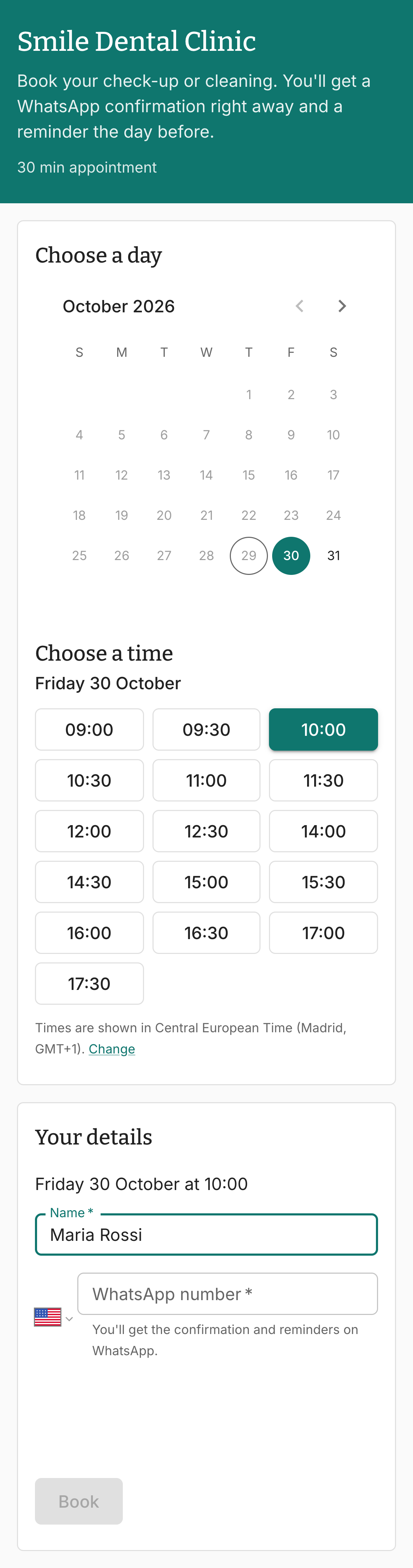
From there it runs on its own. The client gets a confirmation on WhatsApp right away, a reminder before the appointment (one day before by default), and a personal link to see or cancel the booking. You set your weekly hours, appointment length, lunch breaks and days off, and the booking shows up in your reminders list and, if you want, in your Google Calendar.
Before the booking page existed, the only way to get this was to combine WA Reminders with Calendly or Google Calendar's appointment scheduling. Those setups still work (see Calendly and Google appointment schedules), but you no longer need either.
Setup takes about five minutes: how to set up your WhatsApp booking page.
Path 3: you already use Google Calendar
If your appointments are already events in Google Calendar, you don't have to enter them twice. Sign in to WA Reminders with Google, turn on calendar sync, choose the calendars to watch and write the message once. WA Reminders reads each event and sends the reminder at the time you set.
The one thing it needs is to know who the reminder goes to. Put the client's phone number in the event title or description in international format (like +34623122334), or use the name of a contact you've saved in WA Reminders. If you move or delete the event, the reminder follows.
Everything about formatting, variables and multiple calendars is in WhatsApp reminders from Google Calendar.
Recurring appointments
Weekly therapy, a physio course, monthly check-ups, a class every Tuesday: when you add a reminder in the app, tick Repeatable Event and choose how often it repeats (daily, every weekday, weekly, fortnightly, monthly on a weekday or a day number, or yearly) and when the series ends. Every session gets its own reminder, and you set it up once.
Recurring events in Google Calendar work too: each occurrence gets its reminder. More examples in recurring appointment reminders on WhatsApp.
Confirmations, cancellations and the follow-up message
Confirmations. When a client books on your booking page, WA Reminders sends the confirmation the moment they book. For appointments you add yourself, the usual approach is to write the reminder so it asks for an answer ("Reply to confirm, or let me know if you need to change it"). Replies come straight to your WhatsApp, and you read them like any other chat.
Cancellations. On the booking page, the client cancels with their link. The slot is freed for someone else, the pending messages stop, and the booking shows as cancelled in your list. For reminders you added yourself, edit or delete the reminder. With Google Calendar, delete or move the event.
The follow-up message. Every reminder you add in the app can have one extra message, either before the appointment (3 days, 1 day, 1 hour, 30 or 5 minutes before) or after it (5 minutes to 2 hours after). Use it for a second reminder on the day, or to thank the client and ask for a review after the visit. The booking page has its own optional follow-up too.
Templates: what to write
A good reminder is short and has four things: who it's from, the day, the time, and what to do if the client can't come. For example:
Hi, this is Smile Dental Clinic. A reminder of your appointment on {{DD}} {{DD/MM/YYYY}} at {{hh}}. If you can't make it, just reply to this message and we'll find another time.
Save it as a template and reuse it for every client. Variables like {{DD}}, {{hh}} and {{event_title}} fill in the day, time and appointment title for you (how variables work). For ready-made messages for clinics, salons and other businesses, see WhatsApp appointment reminder templates.
Other reminders you can send
The same tools work for any message tied to a date, for example:
- Payment reminders: a monthly message on the day the fee is due, set once as a repeating reminder.
- Treatment follow-ups: "Time for your 6-month check-up" or "How is the shoulder after last week's session?"
- Preparation notes: "Remember to come fasting" the evening before a blood test.
Who uses WhatsApp appointment reminders
Any business that loses money when someone doesn't turn up:
- Health professionals: doctors, dentists, physiotherapists, psychologists and nutritionists. See WhatsApp reminders for clinics and health professionals.
- Beauty salons, barbers and aesthetic centres. See WhatsApp reminders for beauty salons.
- Any appointment business: tutors, coaches, vets, mechanics, consultants. Many of our customers send plain "see you tomorrow at 10" reminders that would fit any of these.
Frequently asked questions
Can customers book and reschedule appointments over WhatsApp?
Yes, with a booking page. Clients book from a link, get the confirmation and reminder on WhatsApp, and can cancel from the link in their confirmation and book another time. They can also simply reply to your reminder to ask for a change, since it comes from your own number.
Is it free?
No. WA Reminders plans cost 19, 29 or 39 USD a month, and every plan has a 14-day money-back guarantee. There's no cost per message, because reminders go out through your own WhatsApp rather than a paid API.
Do I need the WhatsApp Business API?
No. WA Reminders links to your existing WhatsApp or WhatsApp Business number by QR code, the same way WhatsApp Web does. You don't need an API account, a new number or approved templates.
What's the best way to send appointment reminders to customers through WhatsApp?
Send them from the number your clients already know, one day before the appointment, with an easy way to cancel. Then pick the setup that matches your agenda: add reminders yourself, let clients book on your booking page, or sync Google Calendar. A second short reminder a few hours before helps for early-morning appointments.
Can I send WhatsApp appointment reminders without Google Calendar?
Yes. Most WA Reminders customers don't use Google Calendar. You can add each reminder in the app, or let clients book on your booking page. Google Calendar is optional.
If you're ready to try it, create your account, scan the QR code and schedule your first reminder today.