
How to set up your WhatsApp booking page
If you run a clinic, a dental practice, a beauty salon, a physio studio or any business that lives on appointments, you already know the two problems: the back-and-forth to find a time, and the patient who doesn't show up.
The new booking page in WA Reminders solves both with one link. Your customers open it, pick a free time and type their WhatsApp number. They get a confirmation on WhatsApp right away, a reminder before the appointment, and a link to cancel if they can't make it. You get the booking in your reminders list and, if you want, in your Google Calendar.
No app for them to install, no account to create, nothing to learn. It works for:
- Clinics, doctors and dentists: patients book their own check-up, cleaning or consultation.
- Beauty salons, barbers and aesthetic centres: clients grab a slot between other clients.
- Physiotherapists, nutritionists, therapists and coaches: sessions booked without a single phone call.
- Any service professional: tutors, lawyers, accountants, mechanics, pet groomers, anyone who sells time.
This guide starts with the simplest setup, which takes about five minutes, and leaves the fine-tuning (lunch breaks, holidays, custom hours and how bookings interact with the rest of your calendar) for the end.
What your customers see
Before setting anything up, it helps to see the result. This is what a customer gets when they open your link:
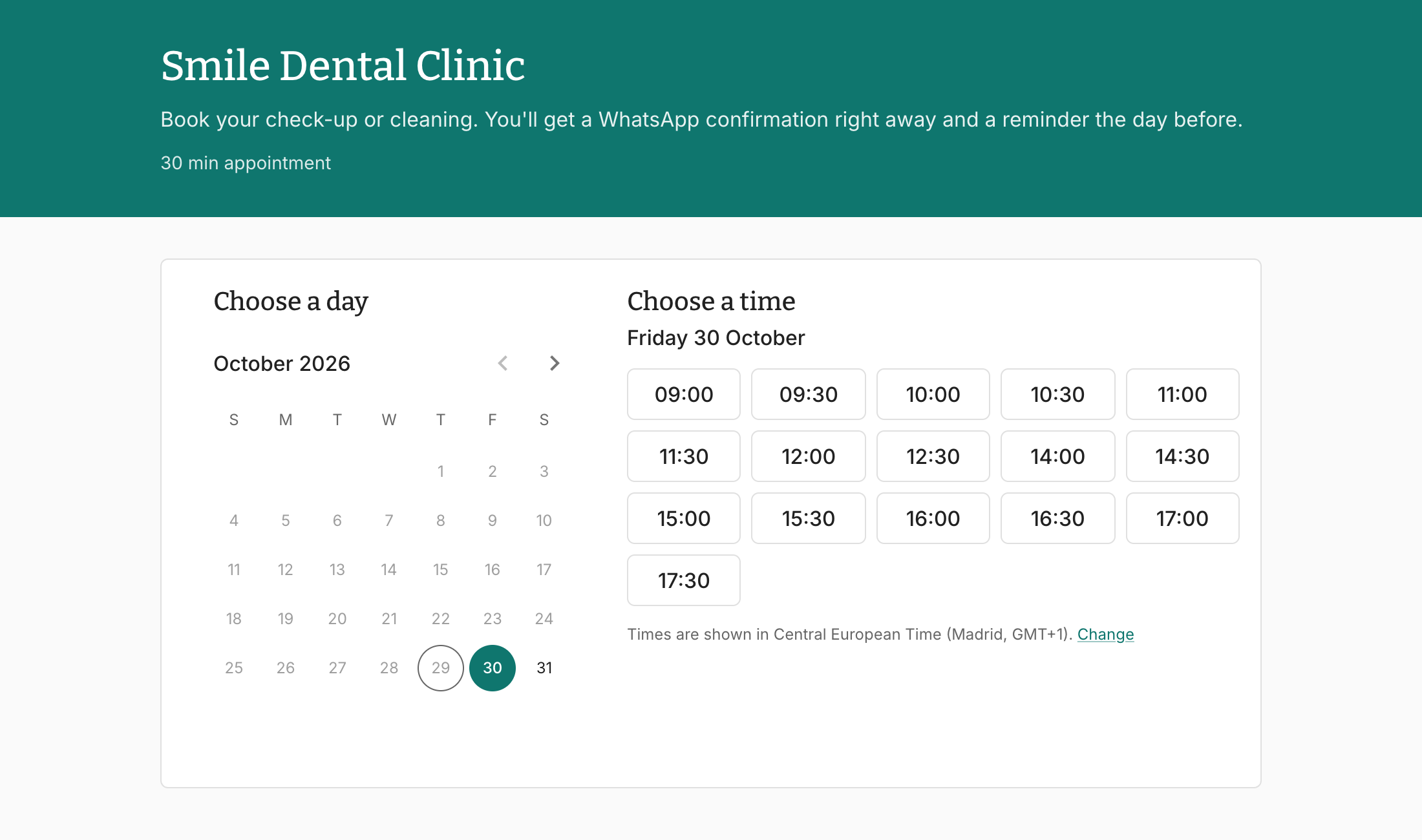
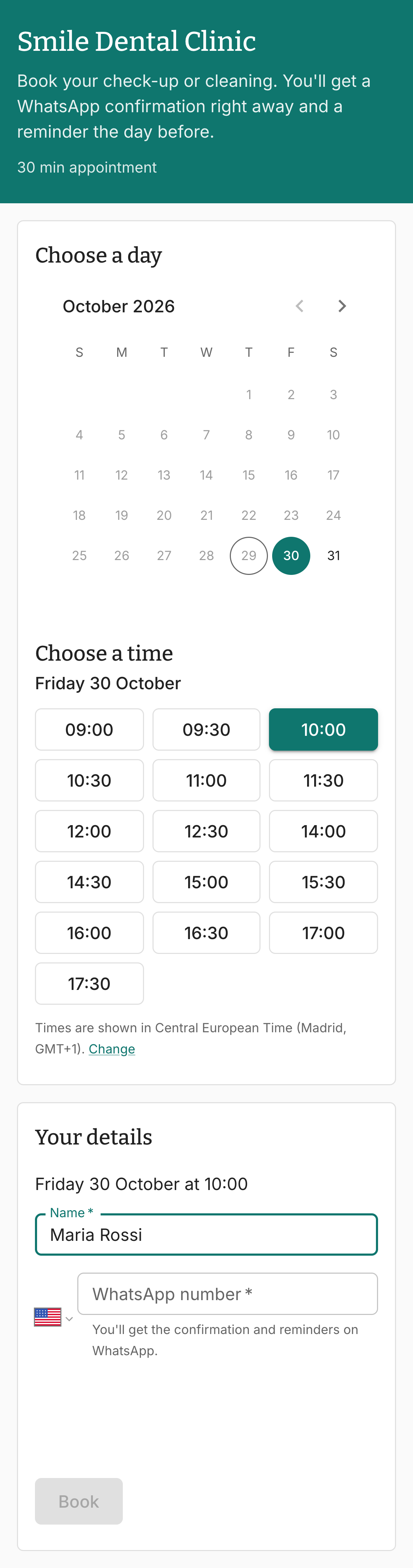
They choose a day, choose a time, and enter their name and WhatsApp number. The page adapts to the phone screen, which is where most of your customers will open it:
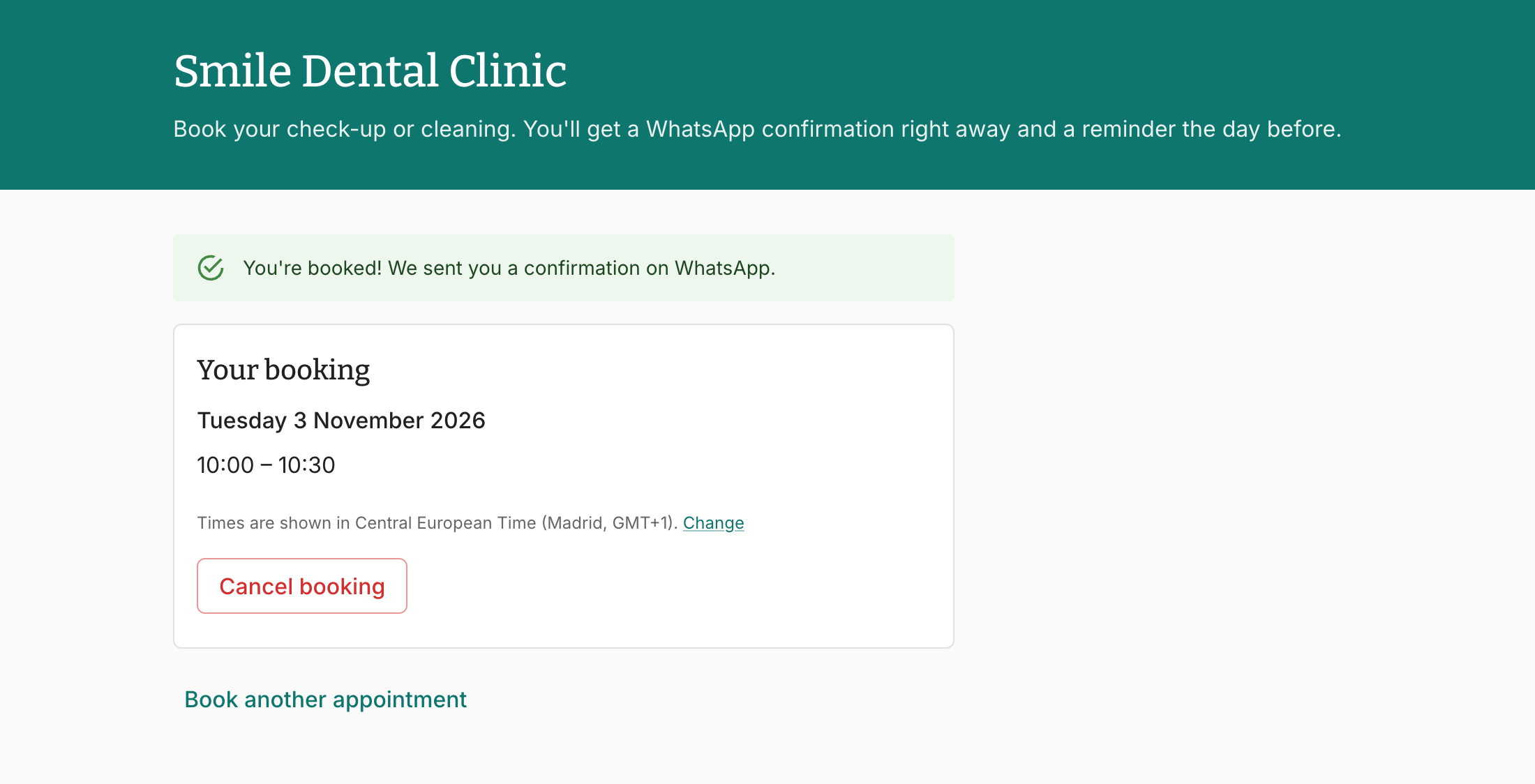
After tapping Book, they see their booking and receive a WhatsApp confirmation from your number. The same page is linked in that message, so they can come back to check the time or cancel:
The page shows up in English, Spanish or Italian depending on the visitor's browser, so a patient from abroad gets it in their language without you doing anything.
Setting up your page in five minutes
Log in to WA Reminders and click Booking page in the left menu. The first time, you'll see an empty form. Here's what to fill in.
1. Page address, title and look
The page address is the end of your link. Pick something short that your customers will recognise, like your clinic's name. Then add a title (what the customer sees at the top) and an optional subtitle, a good place to say what they can book and that they'll get a WhatsApp confirmation.
You can also pick a brand color so the page matches your business, and the preview updates as you type:
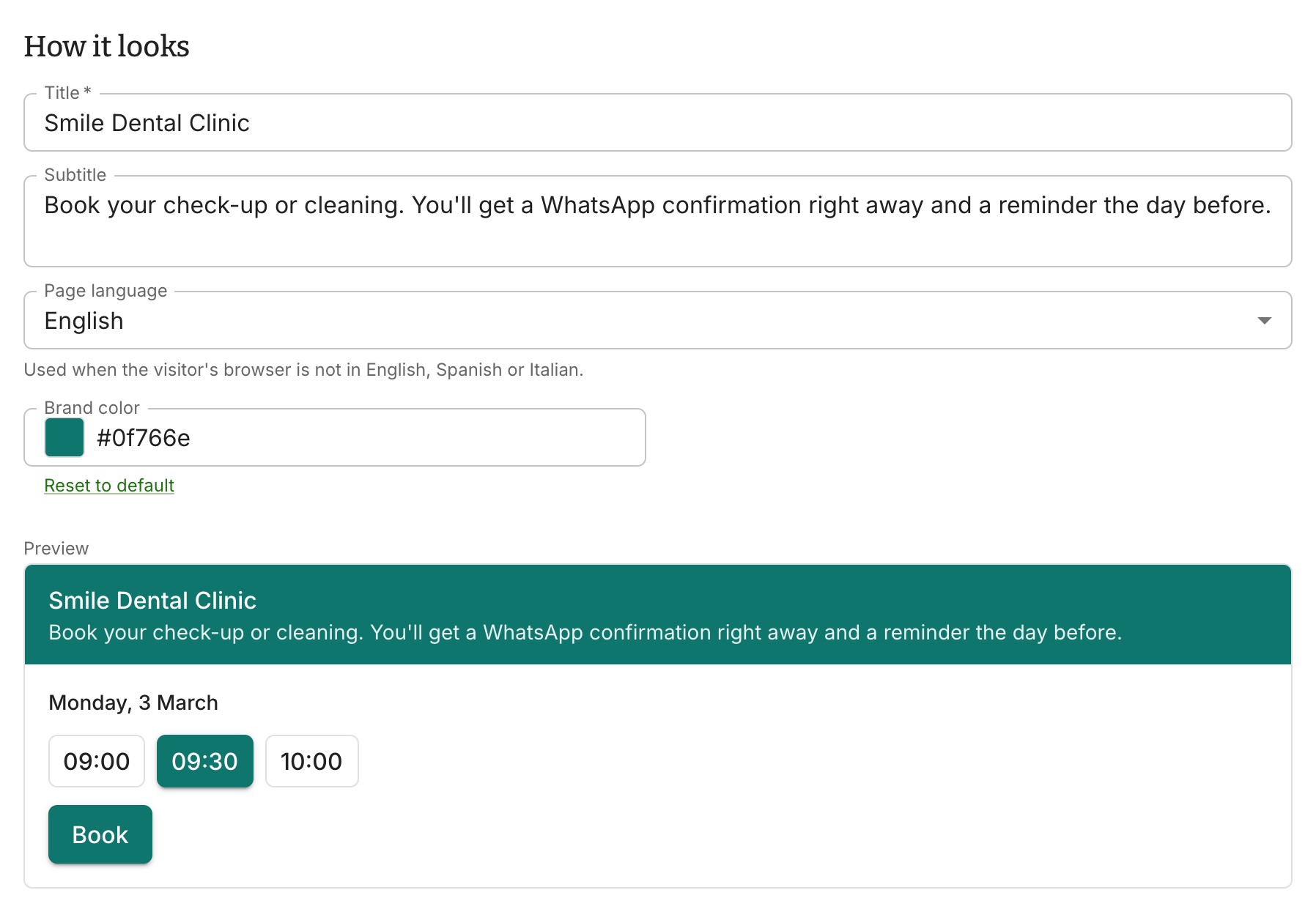
The page language is only used when a visitor's browser is in a language other than English, Spanish or Italian.
2. Appointment length
Under Time slots, set the appointment length. Thirty minutes is the default, which suits most consultations and treatments. You can leave the rest of this section as it is for now; we'll come back to it in the advanced part.
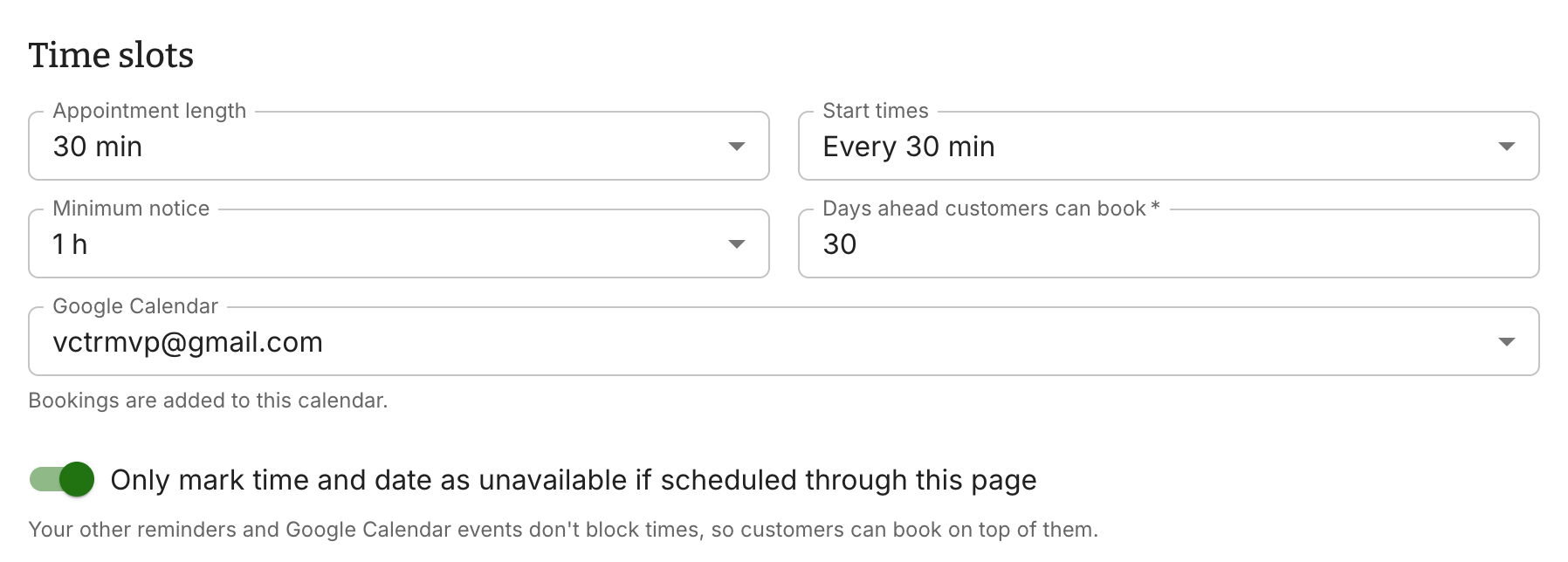
If you've already synced a Google Calendar in WA Reminders, choose it under Google Calendar and every booking will appear there as an event. If you haven't, no problem: bookings still show up in your reminders list.
3. The WhatsApp messages
Three messages can go out for every booking:
- The confirmation message, sent the moment the customer books.
- The reminder message, sent before the appointment. One day before is the default.
- An optional follow-up message, for example to ask for a review after the visit.
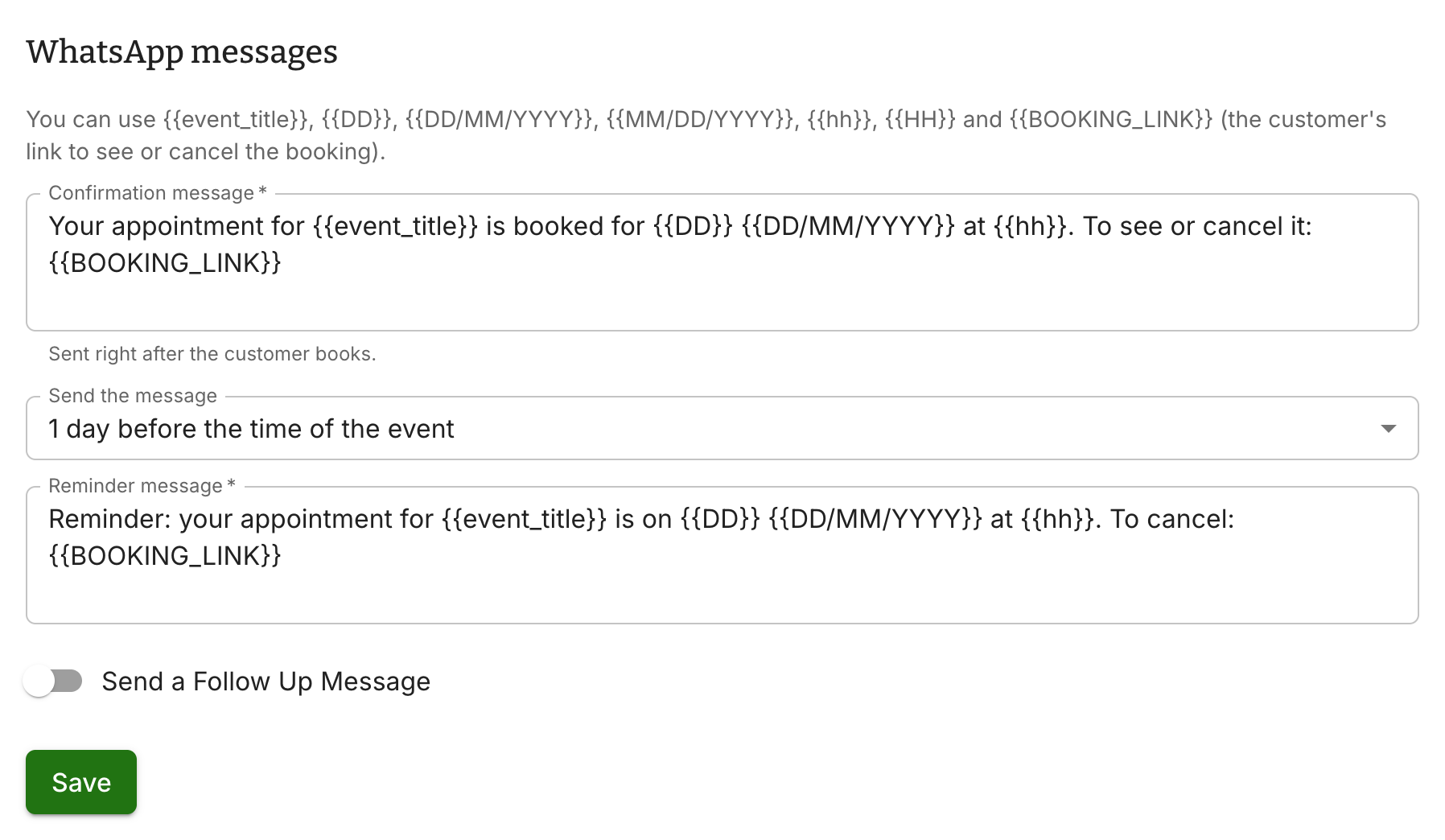
The defaults are ready to use, but you'll probably want to make them sound like you. You can use the same variables as in the rest of WA Reminders: {{DD}} for the weekday, {{DD/MM/YYYY}} or {{MM/DD/YYYY}} for the date, {{hh}} for the time, and {{event_title}} for the title of your page. There's one new variable, {{BOOKING_LINK}}, which turns into the customer's personal link to see or cancel the booking. Keep it in the confirmation message: a patient who can cancel with one tap is a patient who tells you in time instead of just not showing up.
A confirmation for a dental clinic could look like this:
Hi! Your appointment at Smile Dental Clinic is booked for {{DD}} {{DD/MM/YYYY}} at {{hh}}.
If you need to change it, use this link: {{BOOKING_LINK}}
Click Create booking page. Your page is live, with weekly hours of Monday to Friday, 9 to 5, that you can now adjust.
4. Your weekly hours
The Weekly hours card tells the page when customers can book. Tick the days you work and set the hours for each. The hours are in the timezone you set under Settings, and it's shown right there so there's no confusion.
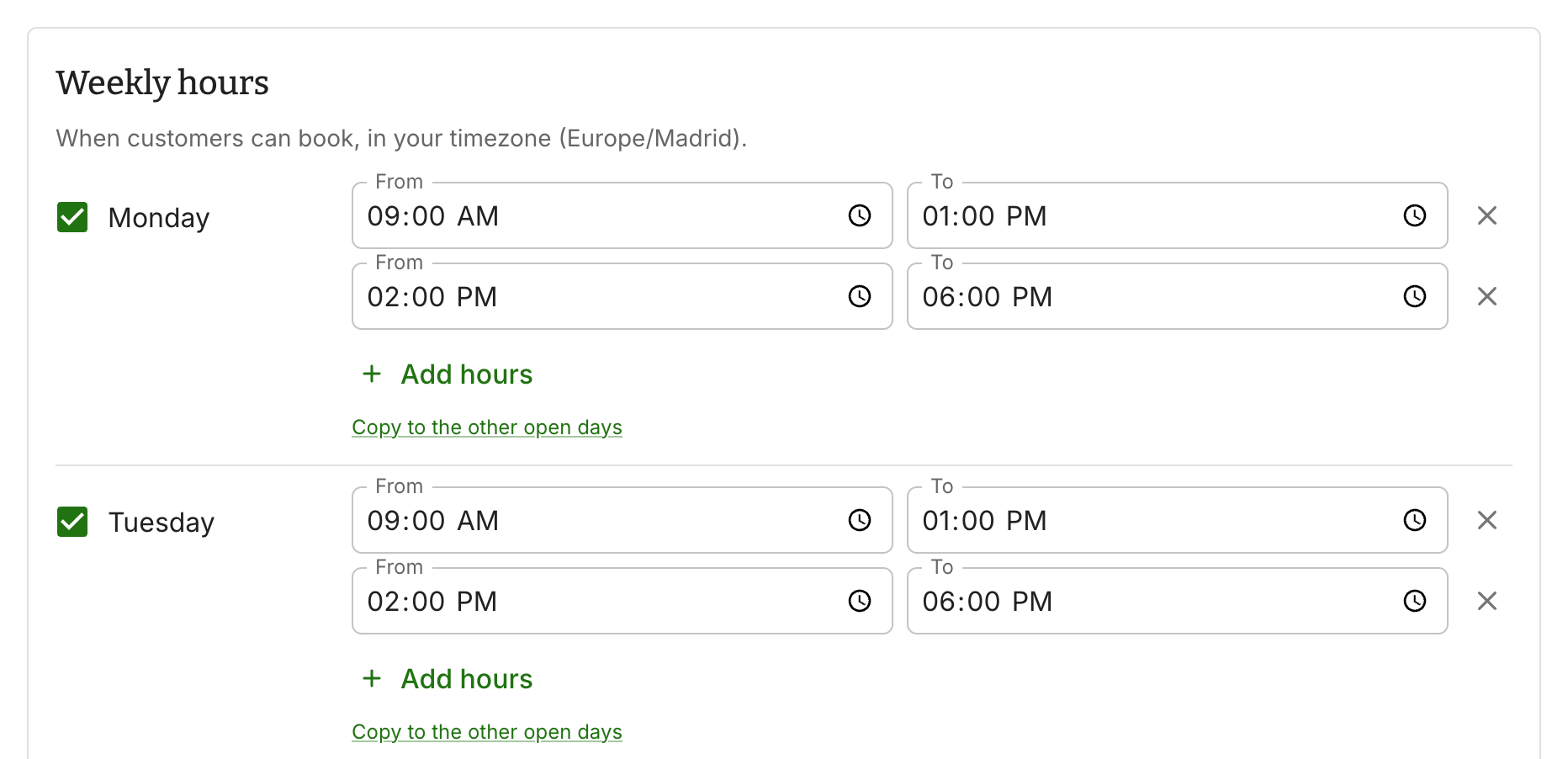
Set one day, click Copy to the other open days and you're done. Don't forget to click Save hours.
5. Share your link
At the top of the page you'll find your link, with buttons to copy it or open it.

Put it wherever your customers already find you: your Instagram bio, your Google Business profile, your website, your WhatsApp Business greeting message, or simply paste it in a chat when someone asks for an appointment. That last one is the real time-saver: instead of "what time works for you?" five times, you send one link.
What happens when someone books
Every booking becomes a reminder in your dashboard, with a Booked chip and the name and number the customer typed in. Nothing else to do: the confirmation has already gone out, and the reminder and follow-up will be sent at the time you chose.
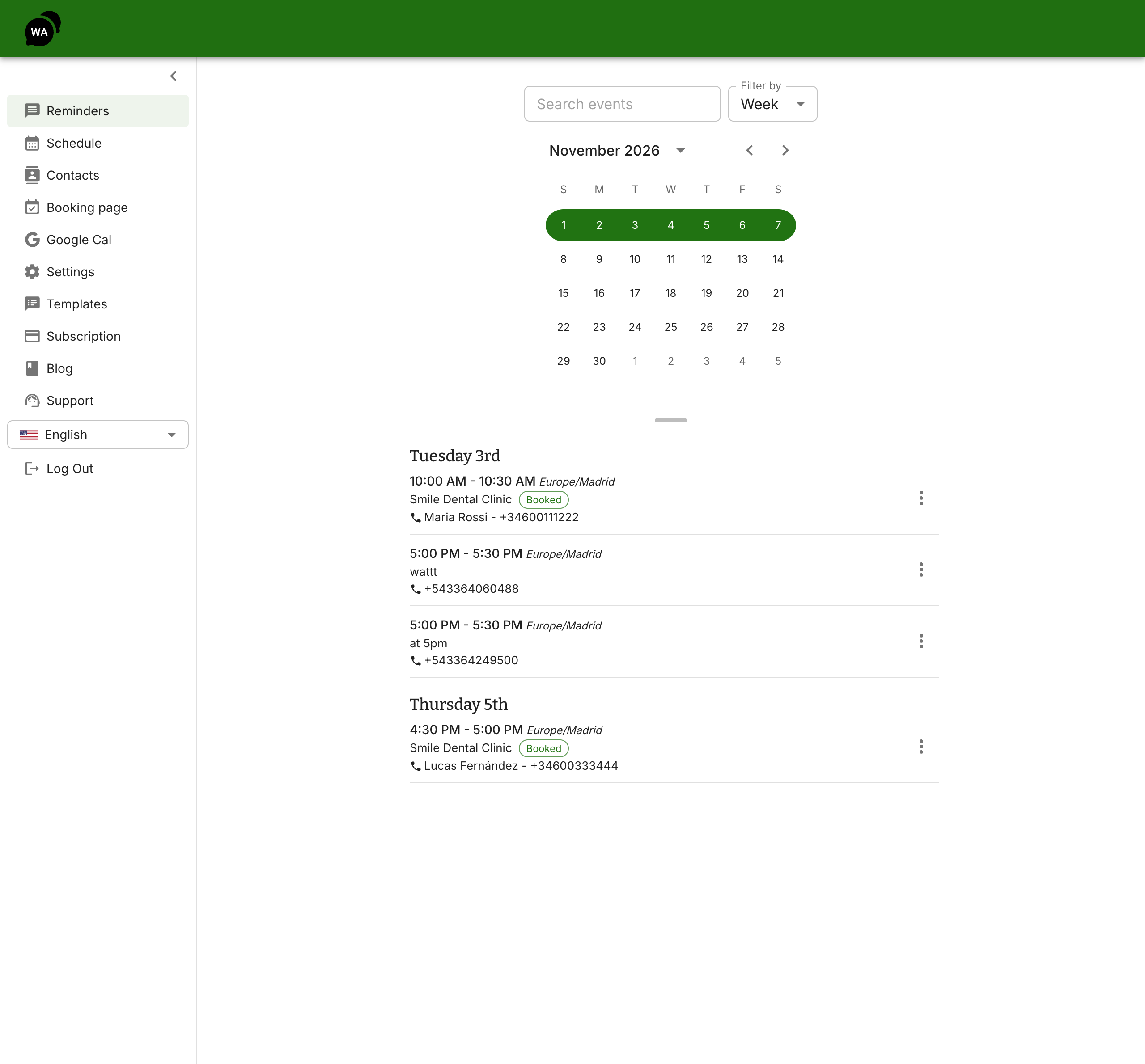
If you picked a Google Calendar, the booking also appears there as an event with the customer's name and number.
When a customer cancels from their link, the time is freed on the page so someone else can take it, the pending messages are stopped, and the Google Calendar event is deleted. In your reminders list, the booking shows as Booking cancelled.
Bookings never create contacts on their own. The name stays with the booking, and if the number is already one of your contacts, the booking is linked to that contact. There's also a small safeguard: one phone number can't hold more than three upcoming bookings on your page.
Advanced settings
Everything above is enough for most practices. The settings below are for when your week is not the same every day, or you want tighter control over which times are offered.
Fine-tuning the time slots
Back in Time slots there are three more settings:
- Start times: how often a new slot starts. With 30-minute appointments and start times every 30 minutes, you get 09:00, 09:30, 10:00. If you offer 45-minute treatments but want tidy start times, set the length to 45 minutes and the start times to every 30 minutes; the page will only offer a time when the full 45 minutes are free.
- Minimum notice: how far in advance someone must book. One hour is the default. A dentist who needs time to prepare the room might set 4 hours or 1 day; a barber may set "No notice" to accept walk-ins who book from the street.
- Days ahead customers can book: how far into the future the calendar goes, from 1 to 90 days. Shorter windows mean fewer forgotten appointments.
Lunch breaks and split days
A day can have more than one block of hours. In Weekly hours, click Add hours under a day to add a second block, for example 9:00 to 13:00 and 14:00 to 18:00. The page simply won't offer times in the gap. The screenshot in step 4 shows exactly that.
If some days are different (a short Saturday morning, a late evening on Thursdays), set them individually. Copy to the other open days only copies to days that are already ticked, so a closed Sunday stays closed.
Holidays, days off and custom hours
The Date exceptions card is for everything that doesn't repeat every week. An exception replaces your weekly hours on the dates it covers, and there are two kinds:
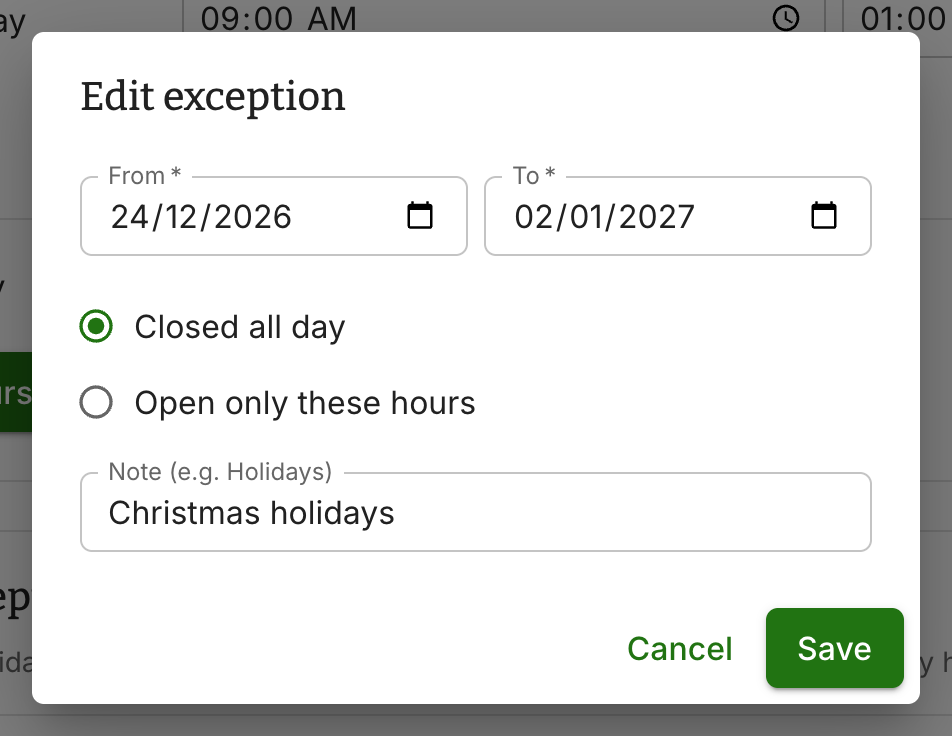
- Closed all day: for holidays, a conference, or any day or range of days you're out of office. Nobody can book those dates.
- Open only these hours: for a day when you work different hours, like a half day or an extra Saturday you've decided to open.
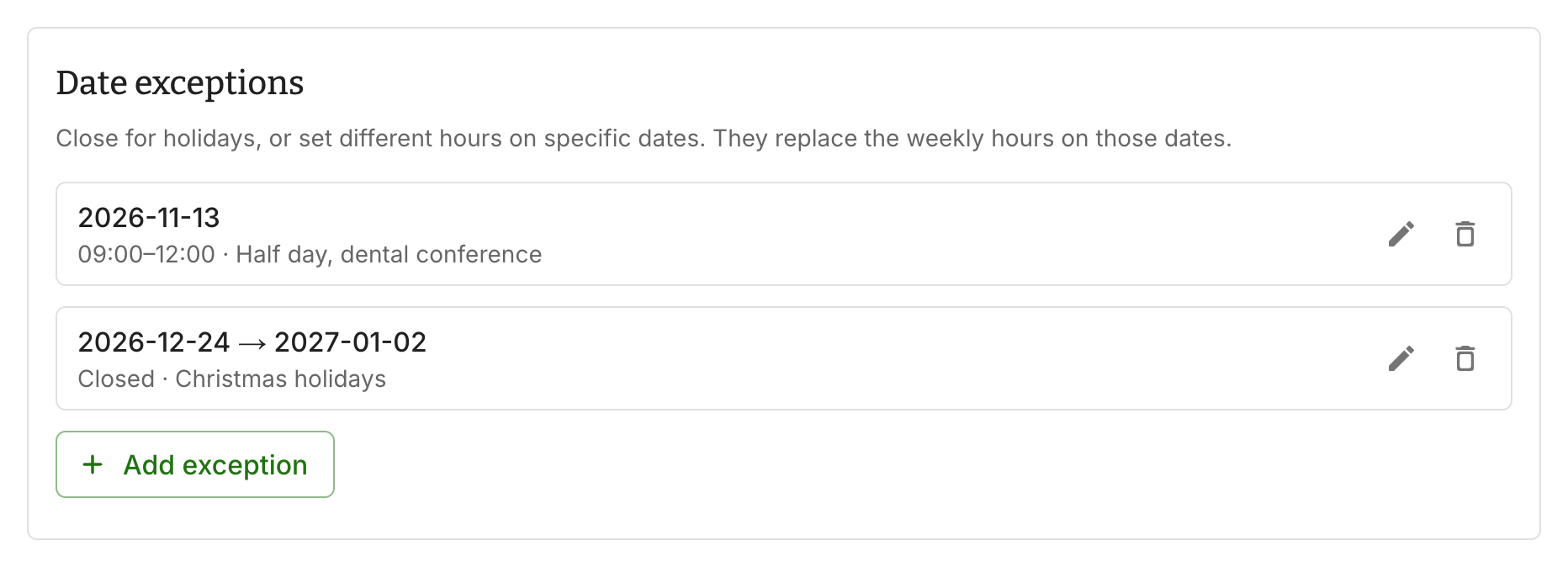
Click Add exception, pick the first and last date, choose the type and, if you're opening custom hours, add one or more blocks. The note is just for you, so "Christmas holidays" or "Dental conference" makes the list easier to read later.
Past exceptions stay in the list, greyed out, until you delete them.
Keeping bookings from colliding with the rest of your agenda
By default the switch Only mark time and date as unavailable if scheduled through this page is on. That means only bookings made through the page block a time. Your other reminders and your Google Calendar events are ignored, and a customer could book on top of them.
This default is right if you use WA Reminders for things other than appointments, or if your calendar is full of events that don't actually occupy you.
Turn the switch off if your agenda is the truth. Then a time is also unavailable when:
- you have any other reminder in WA Reminders at that time, for example an appointment you scheduled by hand for a patient who called, or
- the Google Calendar you chose for the page shows you as busy at that time.
With the switch off, you can keep taking bookings by phone, add them as reminders as you always have, and the page will never offer those times to anyone else. For a solo practitioner with one calendar, this is usually the setting you want. There's one more protection that is always on, whatever you choose: two customers can't book the same slot, even if they click at the same second.
Timezones
Your weekly hours and exceptions are in the timezone from your Settings page, and the times in the WhatsApp messages use it too. Visitors see the times in that same timezone, with the name spelled out ("Central European Time (Madrid, GMT+1)"), and can switch the display to their own timezone with the Change link. That's handy for online consultations with patients in another country.
Pausing bookings
Going on holiday and don't want the page to take bookings at all? Flip Taking bookings to off at the top of the settings and save. Customers who open the link see that the page is not available, and nothing else changes: your existing bookings and their messages stay as they are. Flip it back when you return.
A few tips for clinics and salons
- Say it in the subtitle. "You'll get a WhatsApp confirmation right away" tells the patient they don't need to call to check.
- Reminder one day before, follow-up right after. A reminder the day before gives people time to cancel, which frees the slot. A follow-up an hour or two after the visit is a natural moment to ask for a review or suggest the next check-up.
- Keep the cancel link in the messages. Patients who can cancel in one tap do it, and that's the whole point. A cancelled booking you know about is a slot you can fill.
- Short booking windows. If no-shows are a problem, try 14 or 21 days ahead instead of 90. Appointments booked far in advance are the ones people forget.
If you're not using WA Reminders yet, you can create an account, link your WhatsApp number and have your booking page live today. There's a 14-day money-back guarantee on every plan.